 Walid Karray
From the archive: first published in June 2013 on my old blog, Tux86’s Web Tech Blog. Versions, links and screenshots are from that time.
Part 2: Building the extension
Getting started
This is the second part of the tutorial. If you missed the first part, you can find it here.
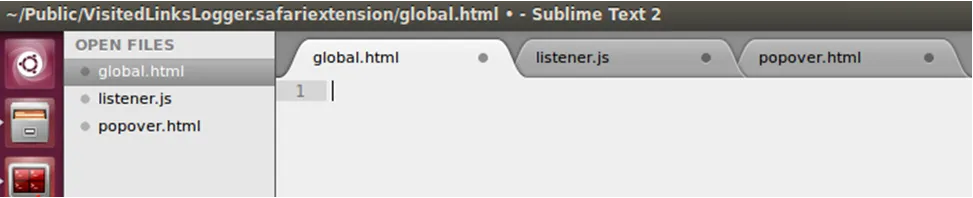
Open these files in your preferred IDE or text editor:
- global.html
- popover.html
- listener.js
The End Script
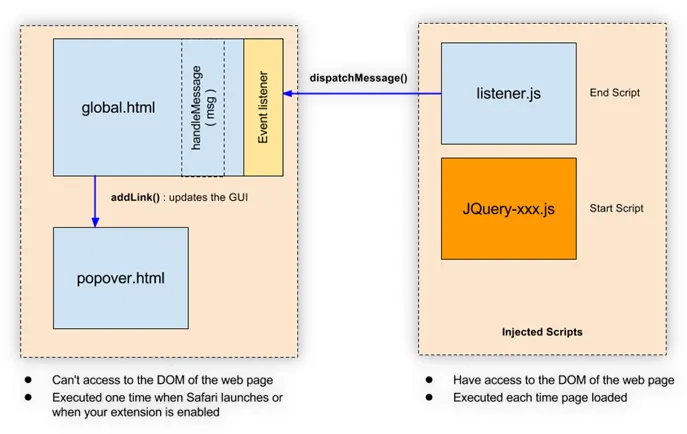
We use an End Script because it has access to the DOM of the web page. This is the only place where we can put our JS code and attach the event listener to the elements of the visited page.
listener.js source code:
function clickHandler(o,recursive) {
	var e=(recursive)?o:o.target;
	if ($(e).is('a')) {
		/*
		the clicked element is a link, so
		send a message with the link information
	    to the global page (calls the handleMessage function)
	    */
	    safari.self.tab.dispatchMessage("link", $(e).get(0).href);
	} else {
		/*
		if the clicked element is not a link,
		we need to go up to the parent element
		recursively until a link tag is found.
	    */
		var parent = $(e).parents("a").get(0);
		if(parent) {
			clickHandler(parent,true);
		}
	}
}
/*
bind the clickHandler function for each
existing element of the document.
clickHandler will be triggered when the user
clicks on an element.
*/
$(document).on("click",clickHandler);
As you can see in the source code above, on line 28, the advantage of using jQuery.on() is that the attached click event handler, clickHandler(), works for both current and FUTURE elements (such as a new element created by a script). When the user clicks on an element, clickHandler() is executed and the clicked element (the object) itself is passed as a parameter to this function. Inside this function we check the element type. If it is a link, or an element wrapped in a link tag <a>, we dispatch a message containing the link information to the Global Page.
The Global Page
global.html source code:
<!DOCTYPE html>
<html>
   <head>
    <script type="text/javascript" charset="utf-8">
        const gui = safari.extension.popovers[0].contentWindow //Create the popover instance
		function handleMessage(msg){
				if (msg.name == "link"){
					//execute addLink() inside the popover
					gui.addLink(msg.message);
				}
		}
		//create the event listener
		safari.application.addEventListener("message",handleMessage, false);
     </script>
   </head>
   <body></body>
</html>
As shown above in the Global Page source code, the event listener on line 13 is registered once, when Safari launches or when the extension is enabled. It tells handleMessage() to catch incoming messages from external scripts. When dispatchMessage() is executed inside “listener.js”, the message is immediately caught by handleMessage() in the global page. Inside this function the message type is checked, then addLink() from “popover.html” is called with the link URL as a parameter. addLink() updates the Popover’s container by adding a new row. Note that you can’t update the Popover interface from the global page directly, because it doesn’t have access to the Popover’s DOM.
The Popover
popover.html is the user interface. It’s built with the usual web technologies: HTML, CSS and JavaScript. As mentioned earlier, we placed addLink() in this file because this is the only place where we can access the Popover’s DOM.
popover.html source code:
<!DOCTYPE html>
<html>
   <head>
  <script type="text/javascript" charset="utf-8" src="jquery-1.7.min.js"></script>
  <style type="text/css">
		body {
			color: #333;
			font-family: tahoma;
			font-size: 10px;
			background: #F7F7F7;
		}

		h1 {
			text-align: center;;
			font-size: 12px;
			color: #990000;
		}

		#container {
			outline: 1px solid #AAA;
			padding: 4px;
			background: #FFF;
			height: 350px;
			overflow-y: auto;

		 }
	    .entry {
	    	padding-top: 6px;
	    }

	    .link {
			cursor: hand;
			cursor: pointer;
			color: #0099CC;
	    }
	    .link:hover {
			color: blue;
	    }

	    .time {
	    	padding-right: 4px;
	    }
  </style>
	<script type="text/javascript" charset="utf-8">
			function addLink(link) {
				$("#start").after('<div class="entry"><span class="time">'+getDateTime()+'</span><span class="link" onclick=\'openLink("'+link+'")\'>'+getShortString(link,34)+'</span></div>');
			}

			function getShortString( str, limit ) {
				if (str.length > limit) {
				 return str.substring(0,limit)+"...";
				} else {
					return str;
				}

			}
			function openLink(link) {
					safari.application.activeBrowserWindow.openTab().url=link;
			}

			function getDateTime() {
				var currentdate = new Date();
				var datetime =  ('0' +currentdate.getDate()).slice(-2) + "/"
				            + ('0' +(currentdate.getMonth()+1)).slice(-2)  + "/"
				            + currentdate.getFullYear() + " "
				            + ('0' +currentdate.getHours()).slice(-2) + ":"
				            + ('0' +currentdate.getMinutes()).slice(-2);
				return datetime;
			}

	</script>
   </head>
   <h1>Visited Links Logger</h1>
   <body>
   	<div id="container">
   		<span id="start" style="display:none"/>
   	</div>
   </body>
</html>
The picture below summarizes all of the above.
Testing the extension
Development of the Visited Links Logger Safari extension is finished, and it’s now time to test it. Ready? Go to the Extension Builder and click the Reload button, which updates the extension with the changes we made.

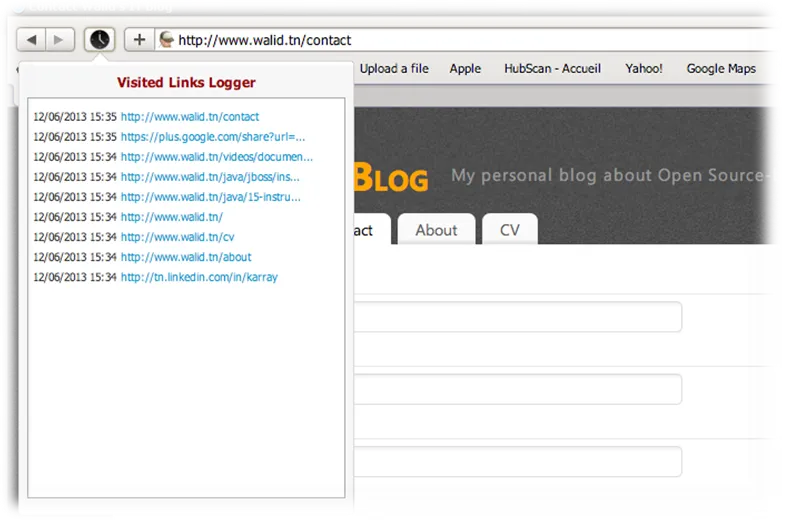
Everything should now work. Visit a few web pages and click on the links inside them, and you will get a result like the one in the picture below.
Building the extension package
At this point we are still in the development stage and don’t have a finished extension yet: it is stored as a folder containing some source files and an icon, and it can’t be delivered to end users as it is. What we need to do next is generate a compact package. Once again the Extension Builder makes this very easy: a single click on the Build Package button (see the picture below), then choose where you want to save your package.

As a result, you should have a new package named “VisitedLinksLogger.safariextz”. It can be installed by opening the file or dragging it onto Safari. You can also publish the extension in Apple’s extension gallery.
I hope this tutorial was helpful. If you need more help, don’t hesitate to contact me or leave a comment, and I will try to reply as soon as possible. To finish, I would like to thank Paola Pereira for reviewing the English.